• Japanese
  • English
  • What is Shelf?
    • What is Shelf?
    • System Requirements
    • Security
  • Basic Menu Screen
    • Basic Menu Screen
  • Basic Functions
    • Basic Functions
  • Terminology
    • Terminology
  • Signing In
    • How to log in
    • Changing the Language (Multi-Language Function)
    • Reissuing Passwords
  • User Menu
    • User Menu Items
    • History
    • Change Password
    • Guideline
    • Address Book
    • Enterprise List Settings
  • Searching and Viewing
    • Viewing
    • Searching menus
    • Searching tags
    • Using the Refined Period Search Function
    • Using the Advenced Search Function -Detailed Period Version-
    • Share Page Link
    • Search All
  • Using Content
    • Forward Request
    • Selecting Content
    • Share Page Link
    • Downloading
    • Downloading Masters
    • Downloading from the Notification Email
    • Download Requests
    • Sending
    • Creating PDFs (Contact Sheets)
    • Download for cloud storage linkage
  • Moving/Copying Content
    • Moving Content
    • Copying Content
  • Editing Meta Information
    • Editing Meta Information
    • AI-powered text and keyword generation
    • Editing Meta Information on multilingual sites
    • Changing Master Content
    • Changing Preview Data
    • Changing Thumbnail
  • Registering Content
    • Registering Content
    • Registering Content by Non-Shelf Users
    • Registering Sub-content
    • Registering/Editing the Sub-content Area
    • Registering Versions
    • Automatic Thumbnail Generation Formats
    • Automatic the JPEGs Generation Formats.
    • Content Statuses
  • Deleting Content
    • Deleting Content
    • Deleting Versions
    • Deleting Sub-content
    • Deleting Sub-content Areas
  • Menus and Folders
    • Library Menus and Folders
    • Creating Menus/Folders
    • Editing Menus/Folders
    • Deleting Menus/Folders
    • Sorting Menus/Folders
  • Relations / Groupings
    • Relations and Groupings
    • Setting Relations / Groupings
    • Removing Relations / Groupings
    • Bulk Registration of Relations/Grouping
  • Tags
    • What are Tags?
    • Creating/Editing/Deleting Tags
    • Creating/Editing/Deleting Tag Groups
    • Sorting Tag Groups
    • Assigning/Removing Tags
    • Bulk Registration of Tags/Tag Groups
  • List of maximum input values
    • List of maximum input values
  • Importing/Exporting Lists
    • Importing/Exporting Lists
  • Favorites Menu
    • What is the Favorites Menu?
    • Creating/Editing/Deleting Favorites
    • Sorting Favorites
    • Adding/Deleting Content in Favorites
    • What is Sharing Favorites?
    • Adding Members to a Shared Folder
    • Viewing/Removing Shared Members
    • Adding/Deleting Content in Shared Folders
    • Removing Shared Status
    • Deleting Shared Folders
  • Administrator Menu
    • Administrator Menu List
  • Manage Users
    • Registering, Editing, and Deleting Users, and Bulk Registration
    • User Registration Requests
  • Manage Notifications
    • Registering, Editing, and Deleting Notifications
  • Manage Companies
    • Registering, Editing, and Deleting Companies, and Bulk Registration
  • Manage Site
    • Viewing Site Settings
    • Editing Site Settings
    • List export for site capacity
  • Permitted IP Addresses
    • Permitted IP Addresses
  • Manage Roles
    • Role Persission List
    • Editing Roles
  • Manage Groups
    • Creating, Editing, and Deleting Groups
  • Managing Menus
    • Menus and Folders
    • Meta Options
    • Adding, Editing, and Deleting Meta Items
    • Restrict Menu Access
    • Restrict Folder Access
    • Download / Forward Request Settings
    • Download / Forward Request Authorizer Settings
    • Download / Forward Request Authorizer Removings
    • Cloud Storage Linkage
    • Settings for Cloud Storage Linkage
  • Manage Site Theme
    • Changing Site Theme
    • Setting Solution Link
  • Manage Input Fields
    • Adding Input Fields
    • Setting Required Input Fields
    • Eediting Selection Options
  • Maintenance Notifications
    • Maintenance Notifications
  • AI generated
    • AI-powered text and keyword generation
    • Manage AI generated Alerts
  • Viewing and Performing Actions on Mobile
    • Supported Actions on Mobile
    • Viewing on Mobile
    • Download on Mobile
    • Download Requests on Mobile
    • Sending on Mobile
    • Registering/Editing/Deleting Content on Movile
    • Registering/Editing/Deleting Sub-content on Movile
    • Registering Content by Non-Shelf Users on Mobile
    • Adding/Deleting Content as Favorites on Mobile
  • Workspace
    • What is Workspace?
    • Workspace Permissions
    • Basic Main Screen
    • Create/Edit/Delete Workspace
    • Add/Edit/Delete Folders
    • Label View
    • Content Registration and Deletion
    • Content Registration Requests
    • Copy and Move Content
    • Proofing Registration
    • Proof Comparison
    • Contents Comparison
    • Proofing Request to Non-shelf Users
    • Downloading/Sending/Creating PDFs
    • Share Page Link
    • Manage Users
    • Manage Site Theme
  • Archive
    • What is Archive?
    • Content Archive Registration
    • Site screen view for archive use
    • Restrictions on the use of archived content
    • How to check the status of archive usage
  • Linking shelf to custom service
    • Custom Service and Linking to Shelf
    • To Begin Using This Service
    • Using Stock Content
    • Managing Menus
    • Limitations
  • FAQ
    • Signing In
    • Searching and Viewing Content
    • Downloading and Sending
    • Registering/Editing/Deleting Content
    • Favorites
    • Download Request Settings
    • Manage Users
    • Access Restrictions
HOME  > Using Content  > Forward Request
Using Content
Print
Forward Request
Print

Forward Request

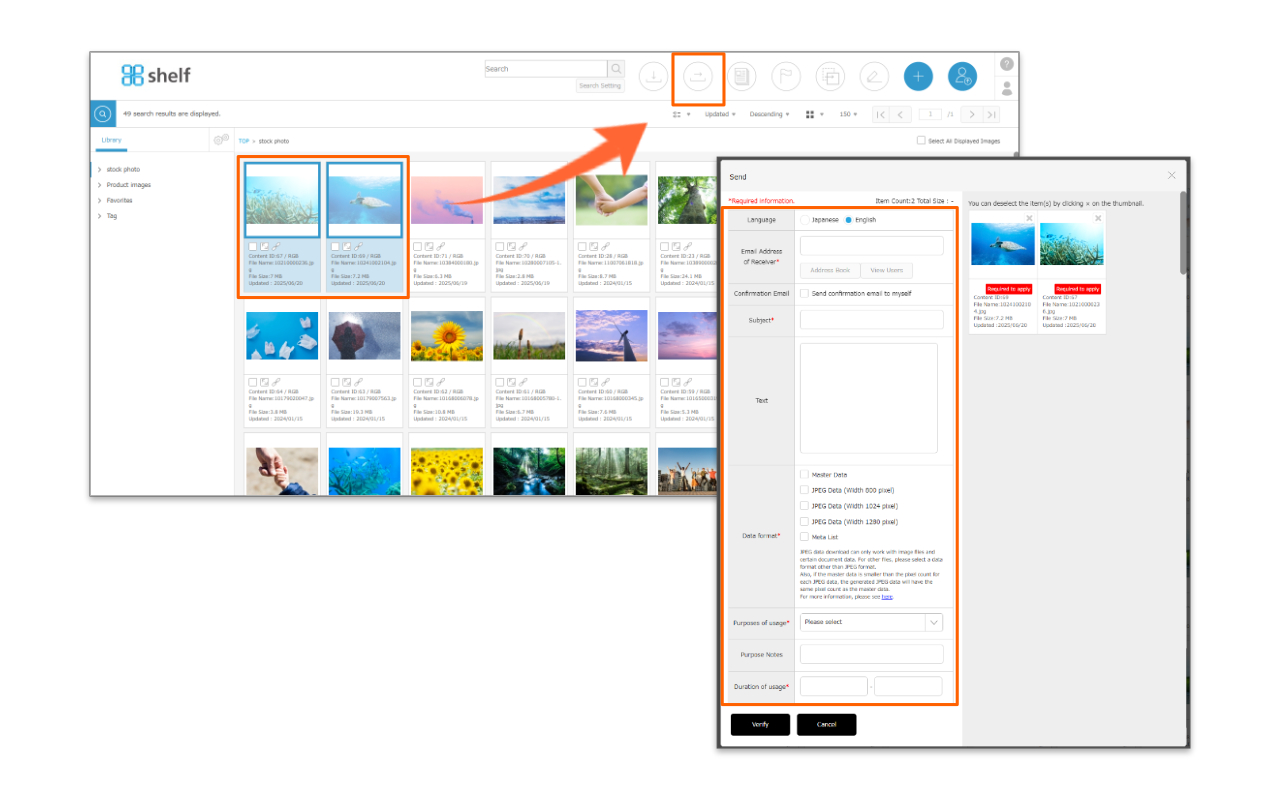
With the send function, you can send download links so that third parties can download content.
When forwarding content that requires an application, the application will be submitted to the approver prior to the forwarding.Once approved, the download URL and password will be automatically sent to the recipient.
*To enable the transfer request feature, please reach out to your account manager or an amana system administrator.

【Issuing Requests】

  1. Selecting the content to be downloaded by dragging and dropping or using the checkboxes.
  2. You will be prompted to enter the necessary information in the download window.

* If any required fields are left blank, you will not be able to send the content.
* The limit on content which can be sent at one time is 150 items, or a total size of 4GB (however the maximum limit may be set higher or lower depending on the site).

  • Language
    URL and password email will be sent with the selected language(English/Japanese).
  • Email Address of Receiver
    Enter the destination email address.
    If you want to enter multiple addresses, separate these with spaces or commas.
    *Some users will be able to select addresses from the Address Book/User List (a button will be shown for users who can use this function).
    * The user list can be refined by department name. For multilingual sites, the search text will be in Japanese/English as set when registering as a user.
  • Confirmation Email
    Select this if you wish to have the email also sent to yourself as a confirmation.
    *If the [Sender Email Address] is entered, the email will be sent to the relevant email address. If not, it will be sent to the email address linked to the ID being operated.
    * Email will be sent in either Japanese or English, as selected in Language.
  • Subject, Text
    Text entered here will appear in the subject line and body of the email respectively.
  • Data Format
    In addition to the master data, required data can be selected including meta information lists and JPEGs in automatically generated sizes as set for each site.
    * Auto-generated JPEGs are only available for still images and some documents. For more information, please see Automatic JPEGs Generation Formats.
  • Sender, Sender E-mail Address
    Enter the sender’s name and email address.
    *For the site using the shared ID, we recommend that you enter the required information in order to identify the sender and the recipient of the confirmation email.
  • Region, Purpose
    Select from the pulldown menu.
  • Usage Period
    Enter the usage period for the content. If a usage period for the content is set, it cannot be downloaded once this time has passed.

* The fields to be entered can be changed per site, so certain information above may not apply.

* Forward Requests can not be made if a forward request authorizer has not been set. In this case, please contact your administrator.

*If you see a link button like the one below, you may not be able to submit download request for master content with this action (Meta list and JPEGs are available for download).
For details, please refer to here.

【Approving/Rejecting Requests】

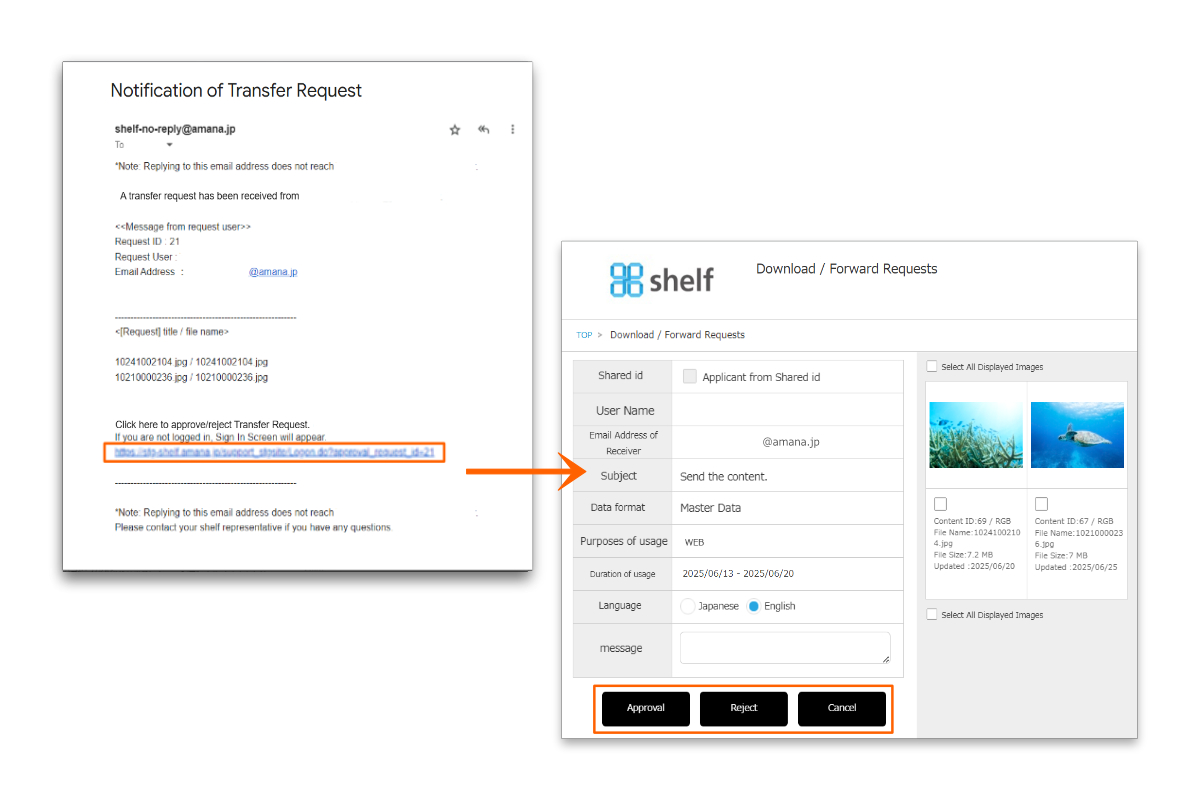
  1. An email informing of the request will be sent to the authorizer.
    The authorizer will click on the URL in the notification email to open the details page of foward request.
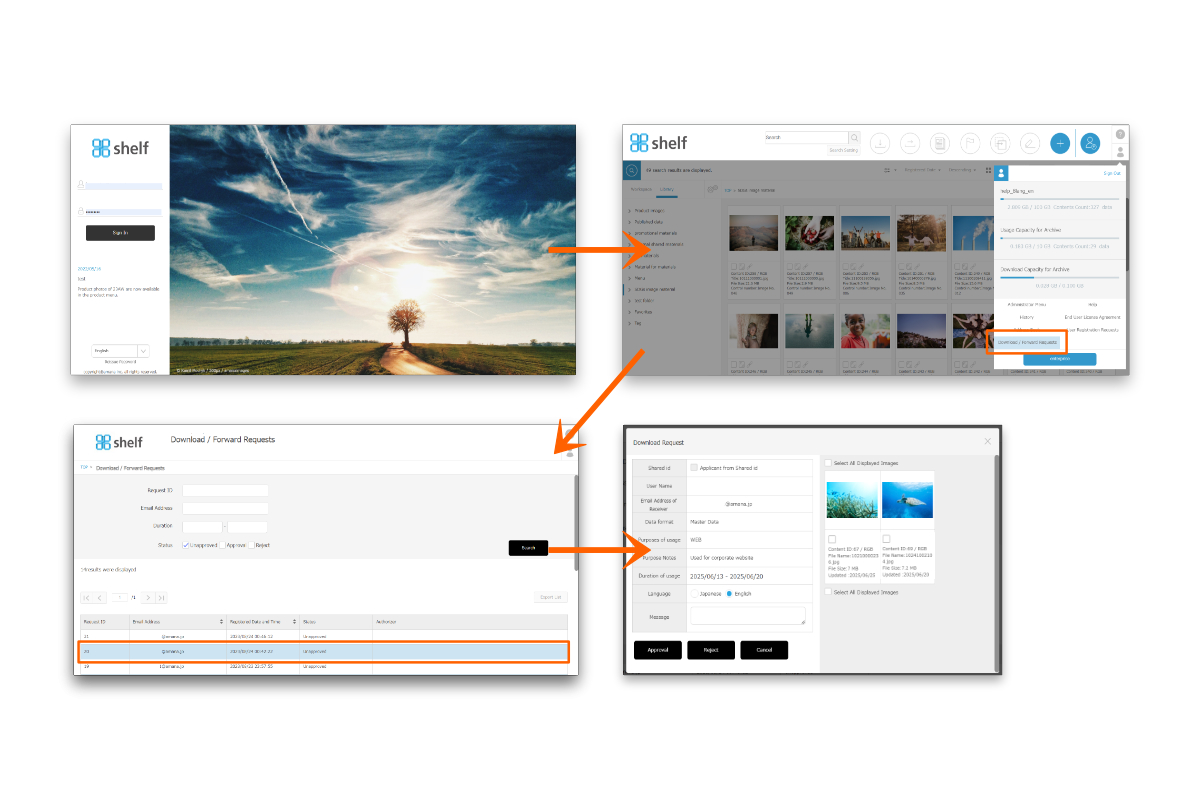
Or they will need to sign in to the site, click on User Menu person icon in the upper right corner of the screen, then click on Forward Requests. Please then Click on each request in the list to open the details.
 

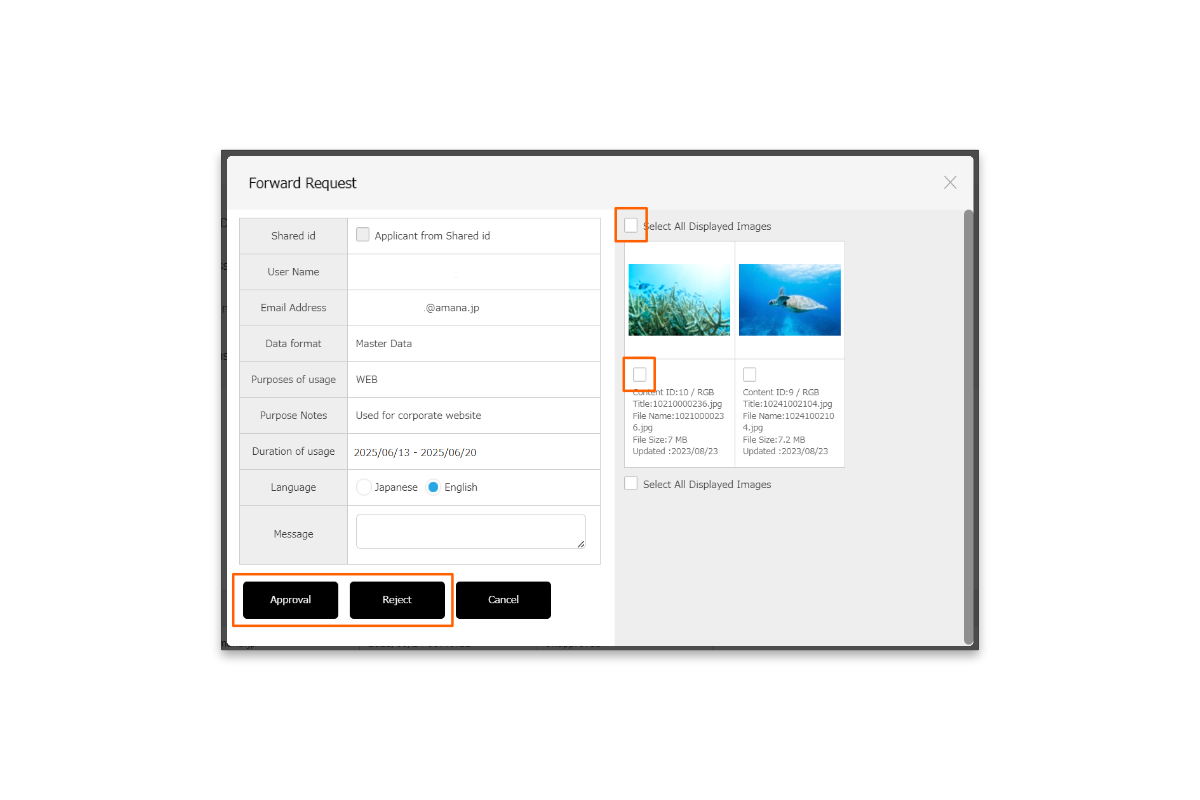
  1. Review the details of the forward request.
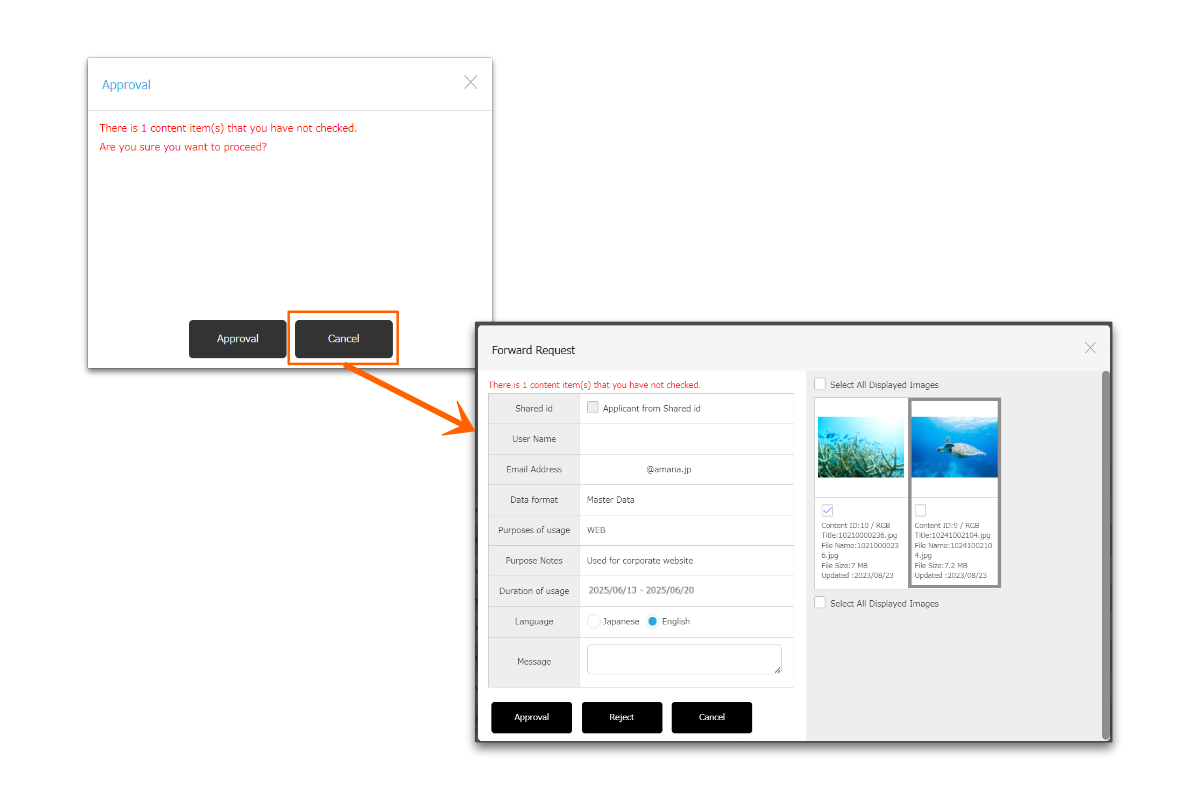
    Select the checkbox for content forwards you want to authorize. then click Approve. Likewise, to reject requests which cannot be approved, select the content and click Reject.
    Check [Select All Displayed Images] on the thumbnail to select all images.
* Users without the relevant permissions cannot perform this action. For more information please contact your site administrator.

* Approving/rejecting for Forward Requests can be made from smartphones.

* If you leave some of the content unapproved, you can approve/reject the leftover content again from the list with the same Request ID.

* If there are unselected contents, a confirmation message will be displayed. If there are no problems, click the “Approve” or “Reject” button. If you want to change your selection, you can click [Cancel] to return to the forward requests details screen.
 

  1. An email informing of the approval/rejection will be sent to the requester.
    If approved, a download URL and password will be sent to the forwarding address.
    * Approval/rejection notifications will be sent to the sender’s email address if it was provided during the application.If not, it will be sent to the email address linked to the ID being operated.
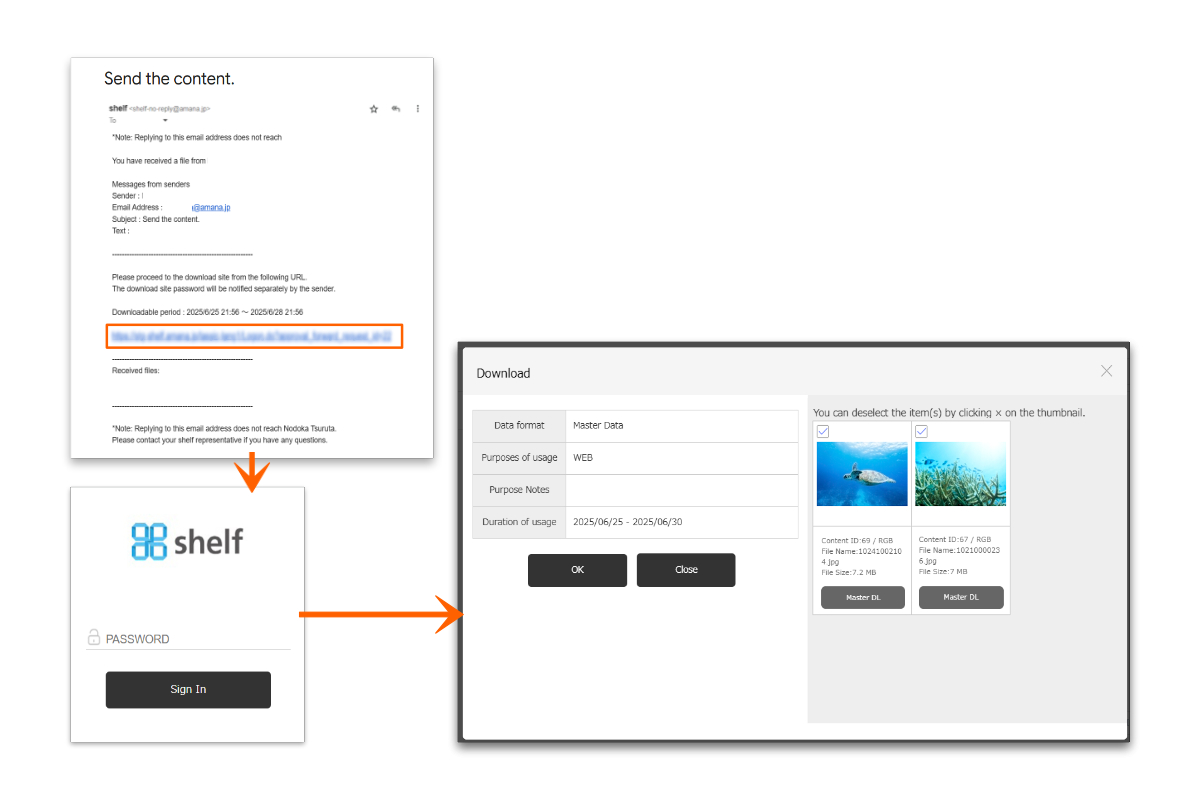
* The default subject and text of the forward requests email will be sent in Japanese if the request is submitted through Japanese site, and in English if the request is submitted through other language sites.

* The default subject and text of the forward approval email and the forward rejection email will be either Japanese or English, selected by authorizer when sending.

【Export of Forward Request history list】

The history currently displayed on menu page can be exported to a list as a txt file.
For details, please refer to Importing/Exporting Lists.

* In order to use the forward request feature, please contact your Shelf sales representative or Amana systems administrator.

*For more information on request settings, please see Forward Request Settings, Forward Request Authorizer Settings.

Close

© amana inc.