
Download / Forward Requests
With download / forward request settings, you can set whether or not an authorizer’s approval is required when downloading and transferring .
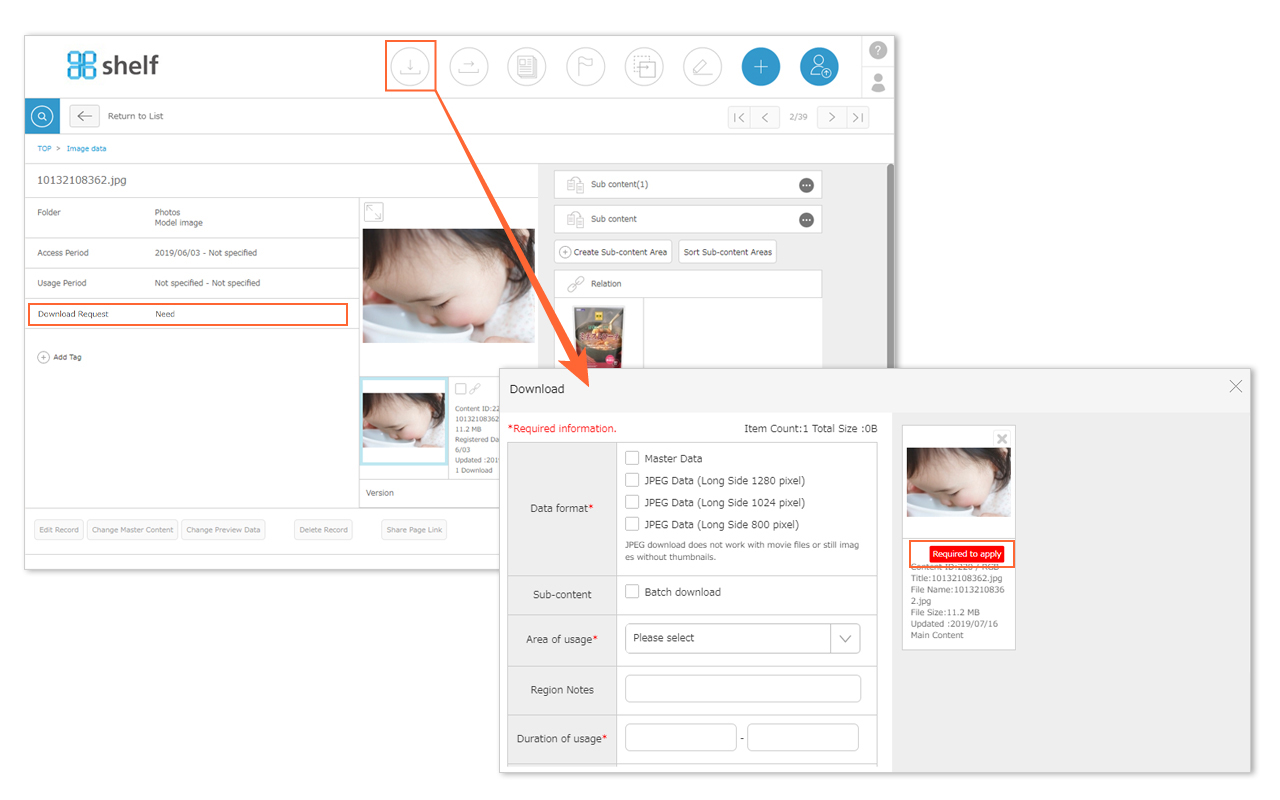
Settings are applied on a per-menu basis. If the request feature is enabled, when an item of content is uploaded to the applicable menu, you can specify whether or not a request is required to download / forward that item.
Enable Download / Forward Request Features
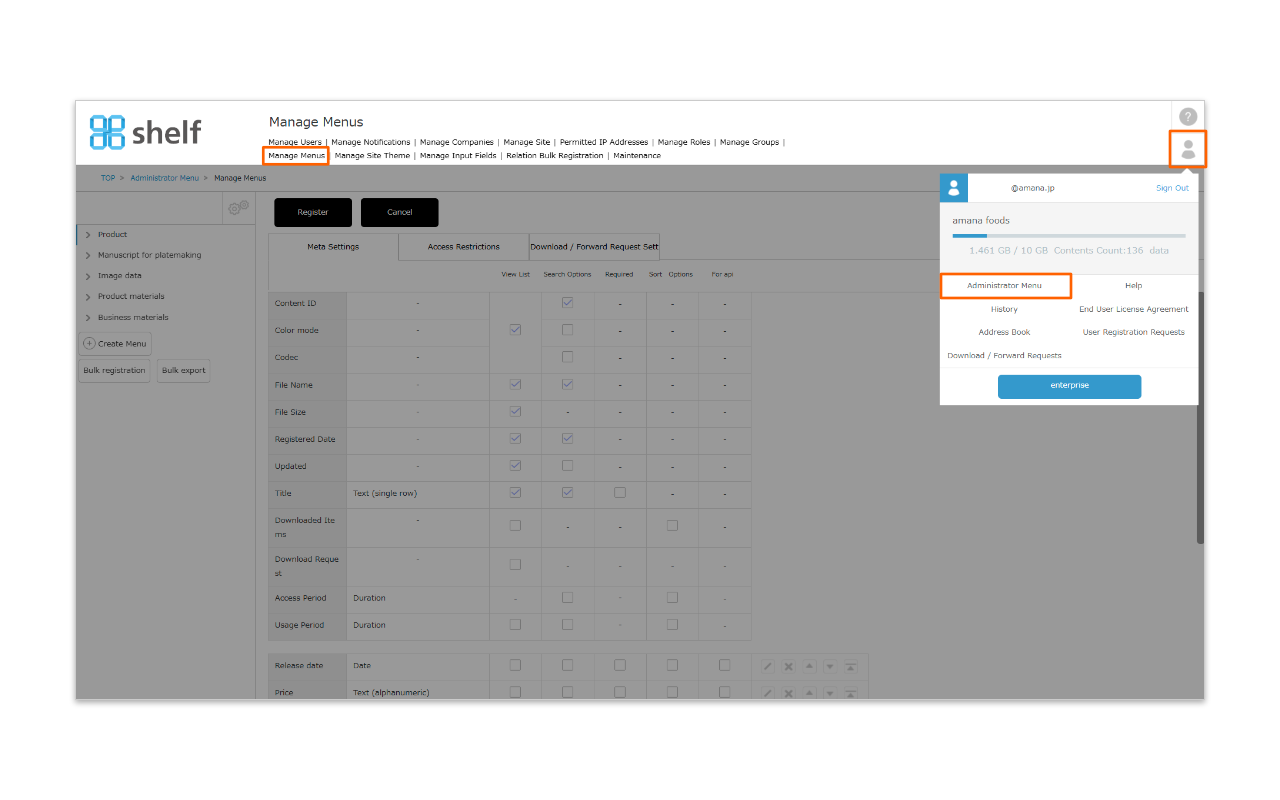
- Click Administrator Menu from User Menu
 in the upper right of the screen, then click Manage Menus.
*Administrator menu is available in Japanese and English only. If you select another language site, please log in again to the Japanese or English site.
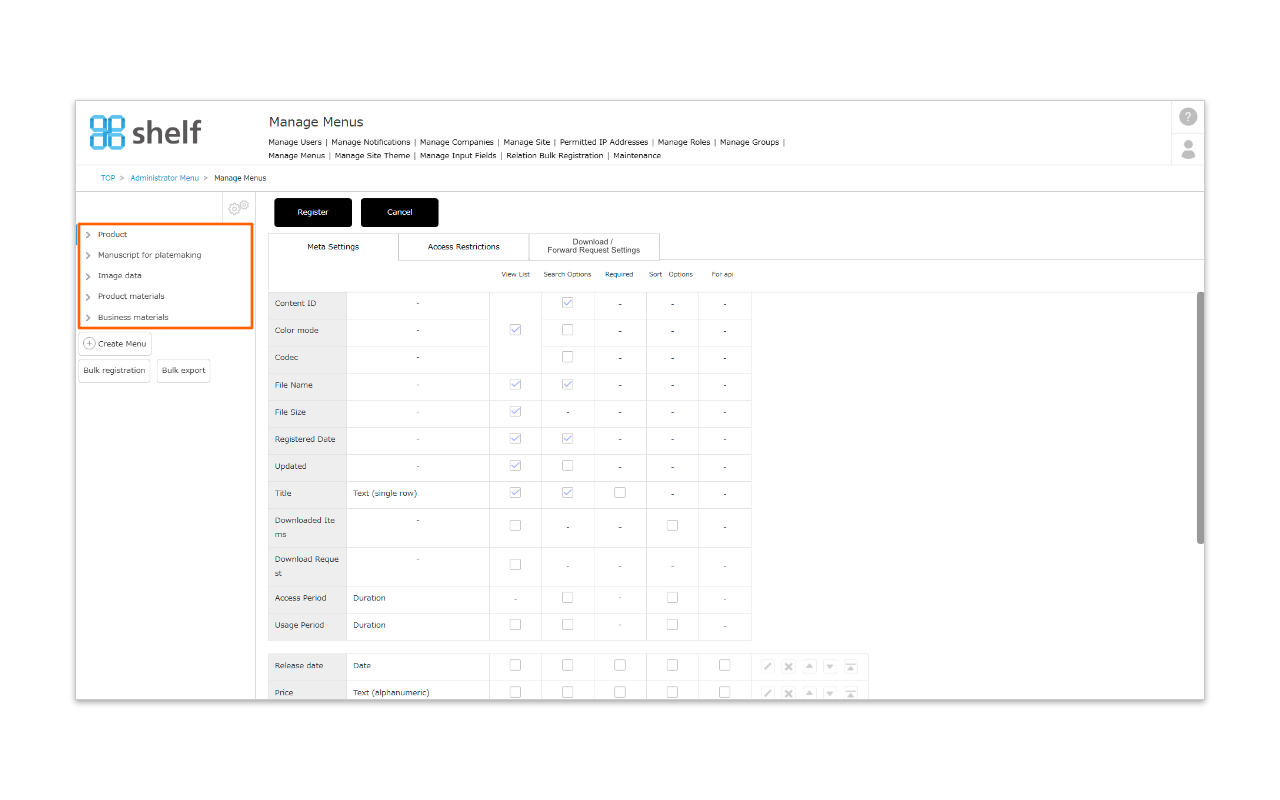
- A list of menus and meta items currently set will be displayed. Click the name of the menu to which you want to apply download / forward request settings.
- Click the Download / Forward Request Settings tab to open the settings page.
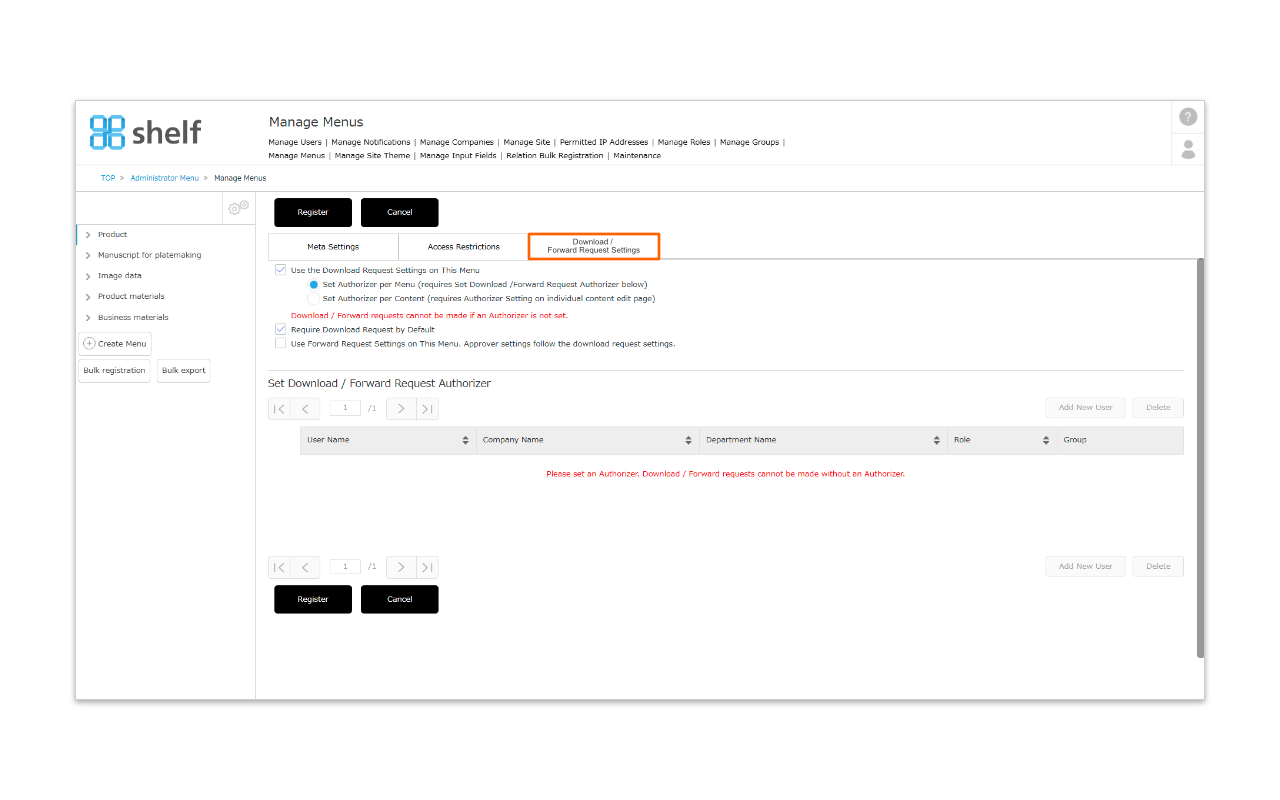
- If Use Download / Forward Request Settings on This Menu is selected, the registering user will be able to specify whether or not a download / forward request is required to download that content.
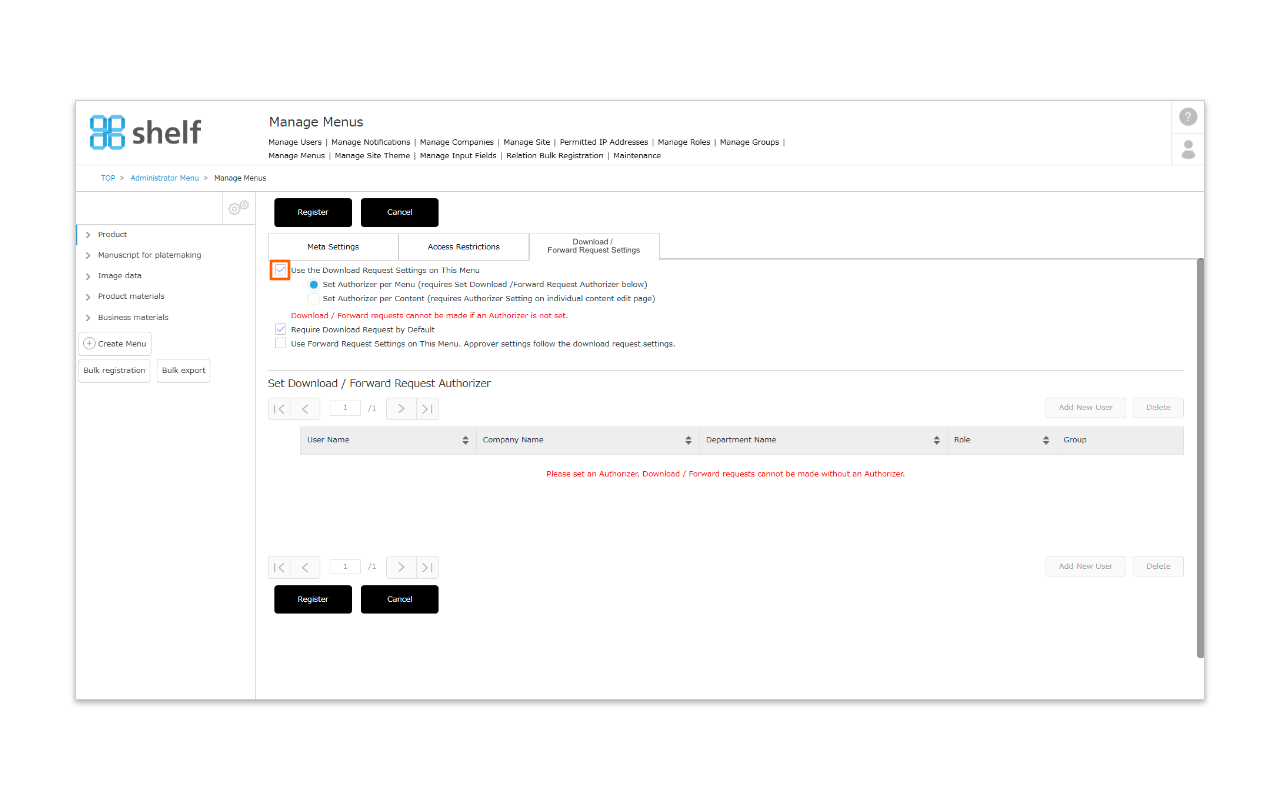
* For more information on how to set download/forward request authorizers, please see Download / Forward Request Authorizer Settings.
- If Require Request by Default is selected, the Request Required checkbox will always be selected by default when registering.
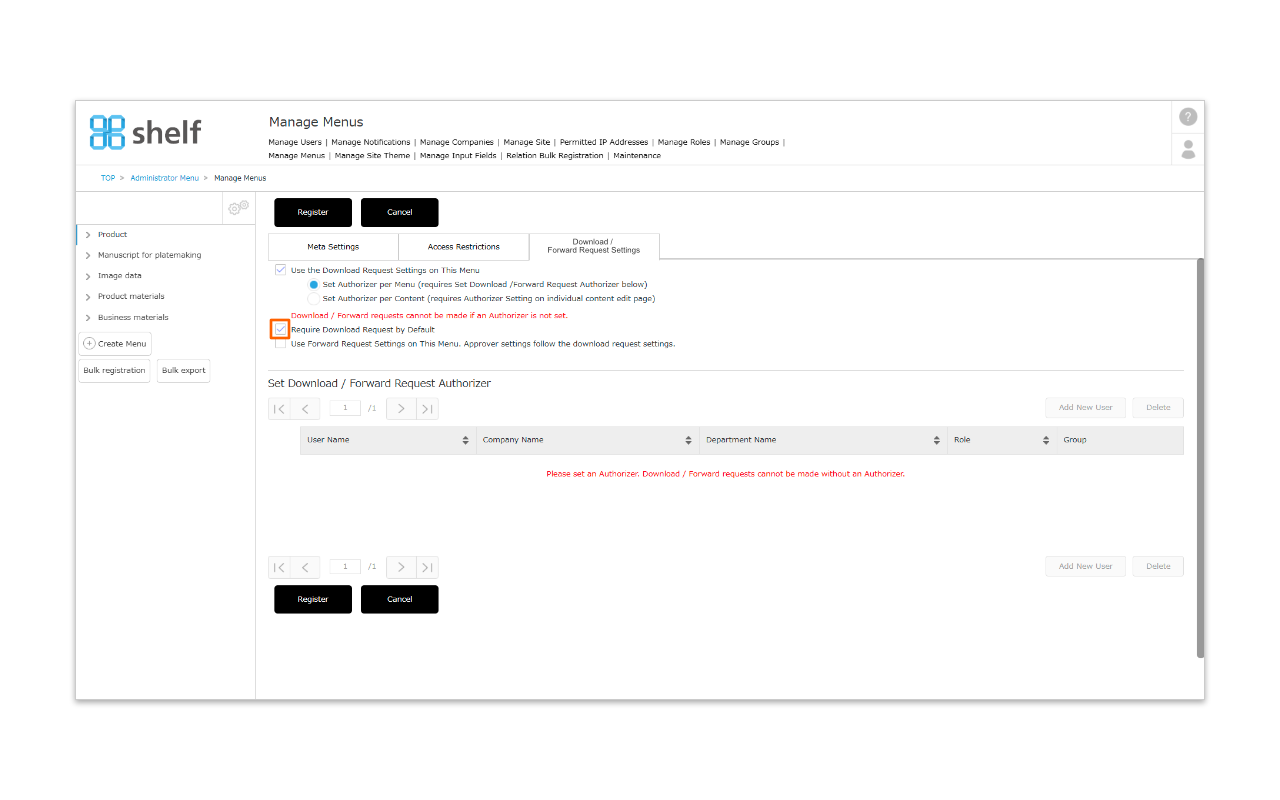
* Download / Forward request requirement can be toggled from the edit page for individual content items.
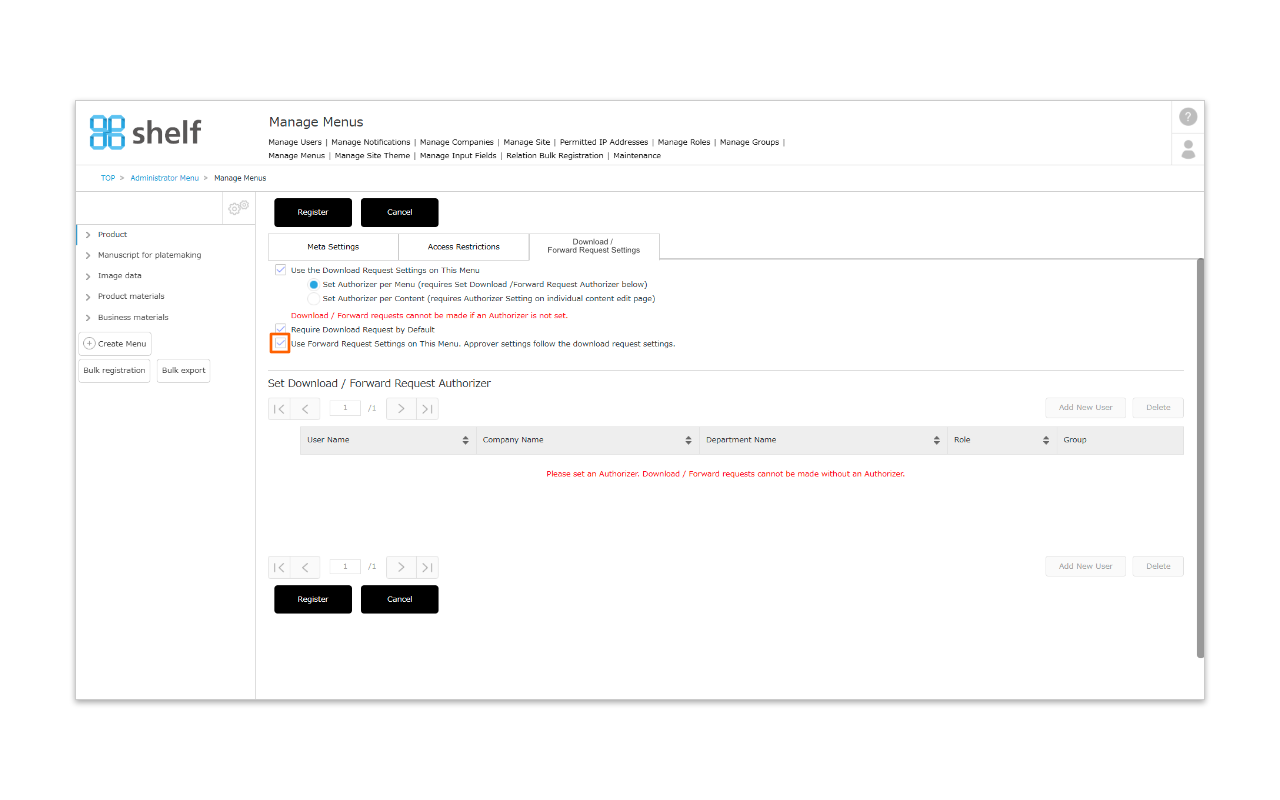
- Click Register to complete.
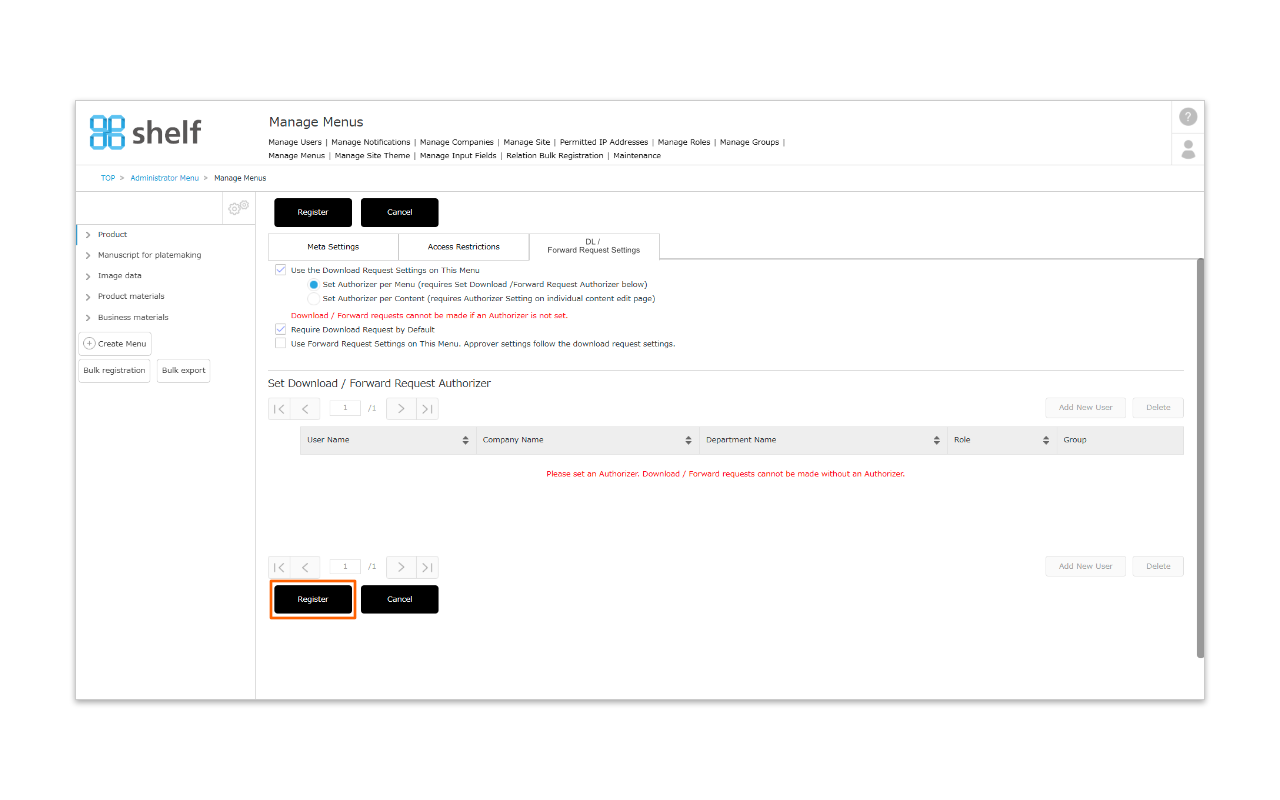
* If download / forward requests are enabled on a menu to which content has already been registered, any content registered up to that time will be set to not require a download / forward request by default. This can be changed to require a download / forward request from the edit page of each item of content.
Changing Request Requirements Per Content
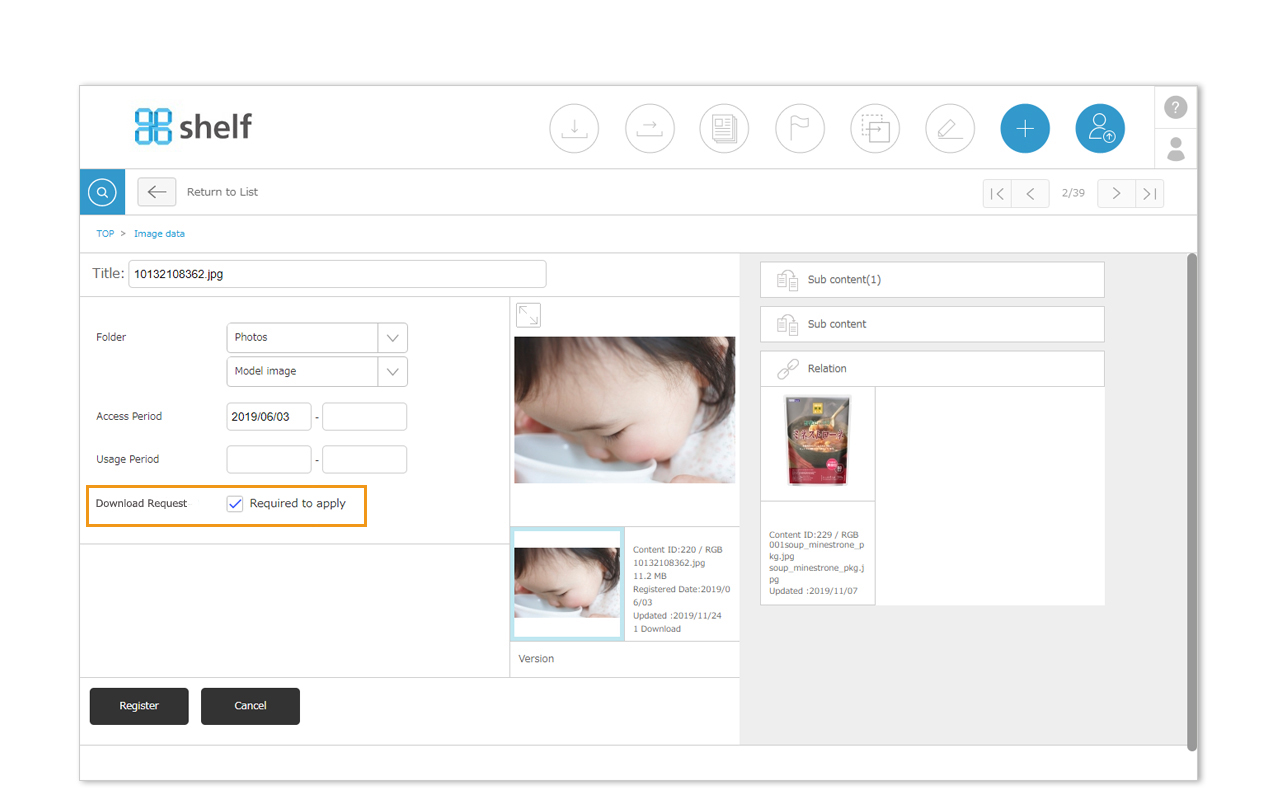
To enable or disable download / forward requests for individual content items, select or clear the Download Request checkbox when registering or editing the item.
- Select the content to be edited via ≪dragging and dropping≫, or ≪using the checkboxes≫.
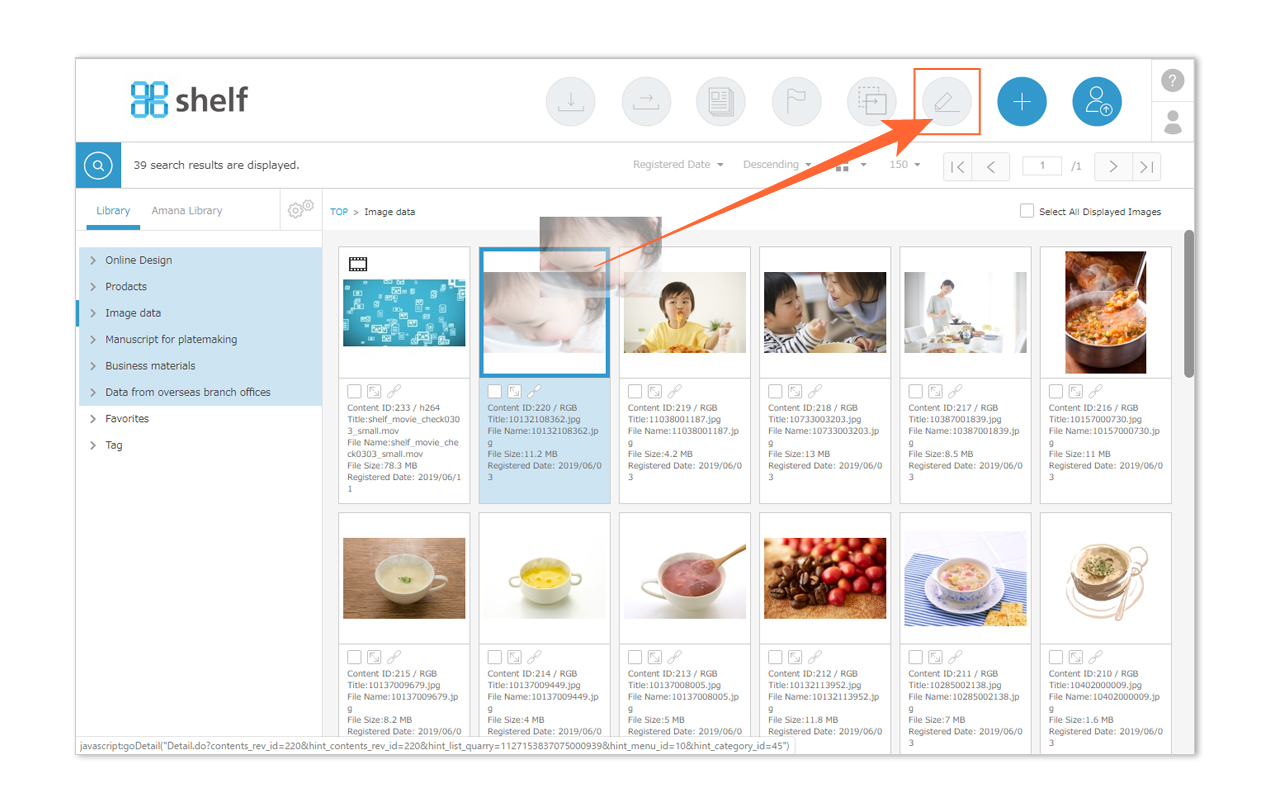
- From the edit page of the selected content, select the Download Request checkbox to require download / forward requests, or clear the checkbox to disable this feature.
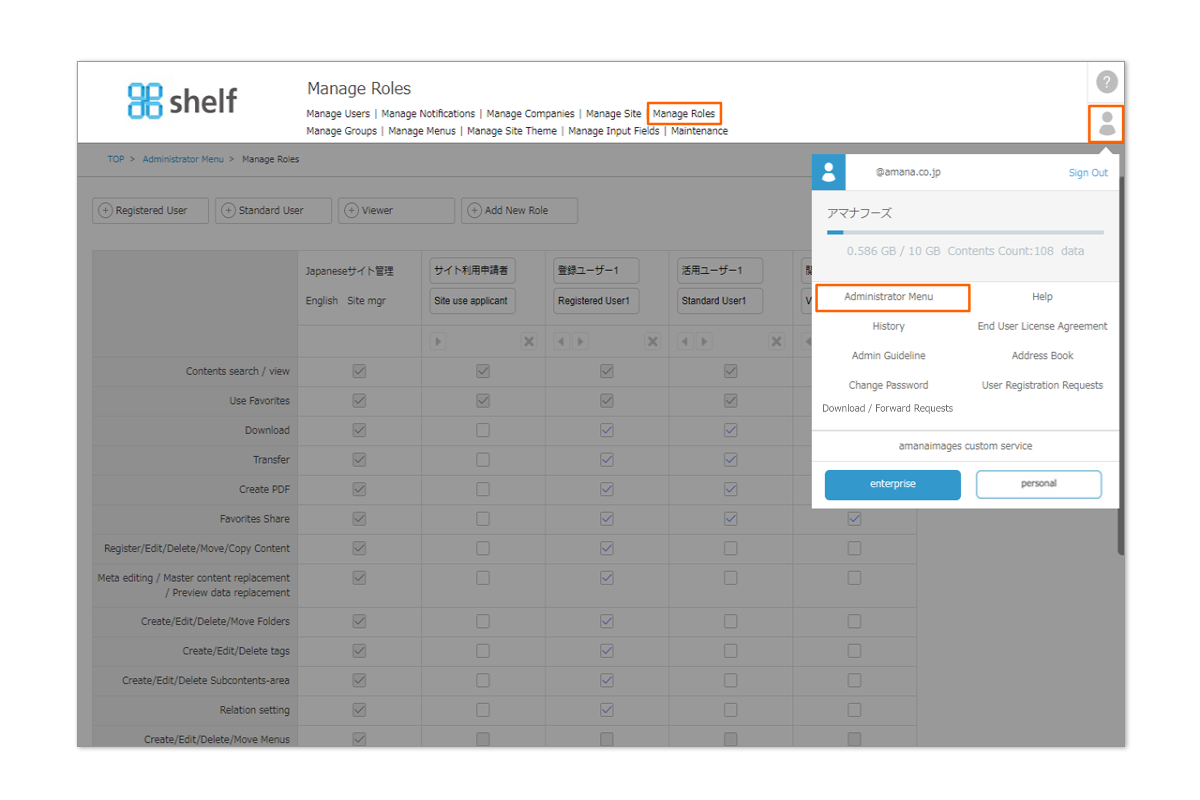
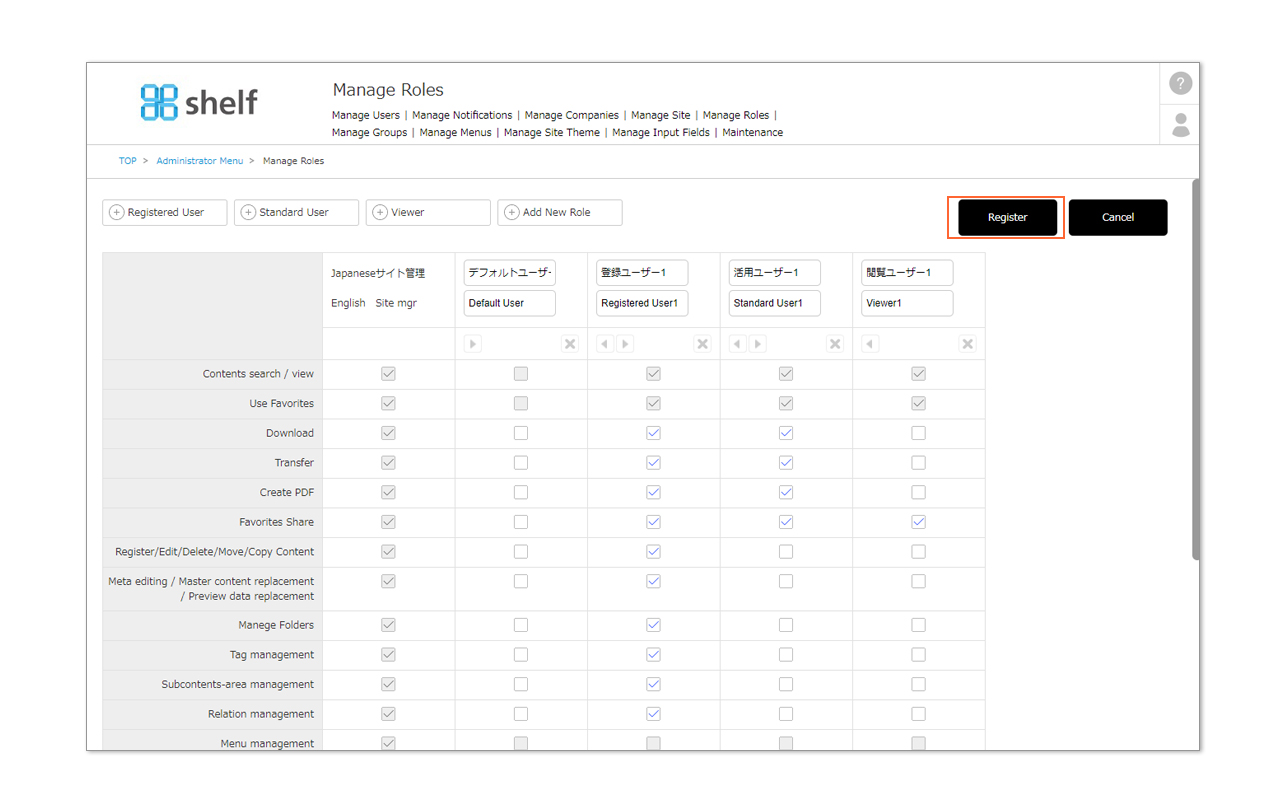
To allow users other than Site Managers to manage this, the following permissions need to be set.
- Click Administrator Menu from User Menu in the upper right of the screen, then click Manage Roles.
*Administrator menu is available in Japanese and English only. If you select another language site, please log in again to the Japanese or English site.
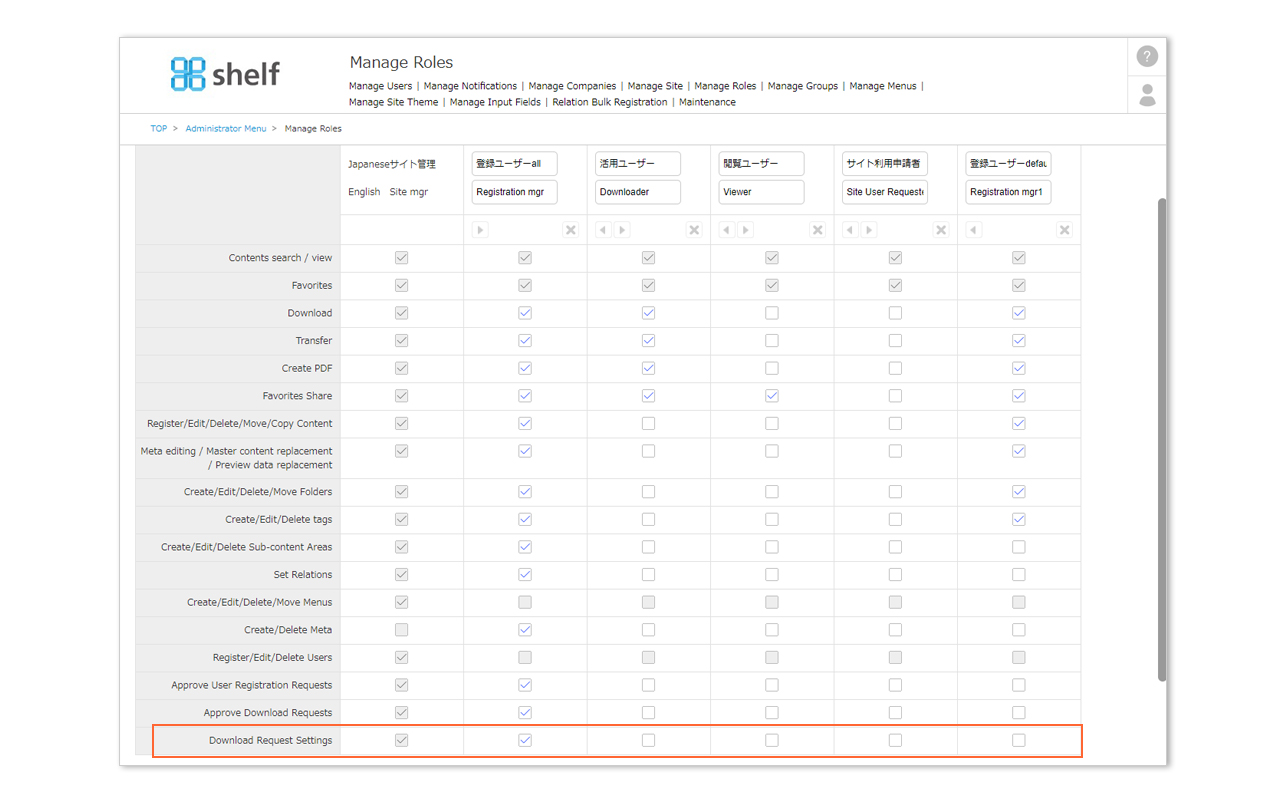
- In the role of the user to which you want to grant the permission to manage requirement of download / forward requests, select the checkbox for Manage[Download Request Settings]
- Click Register to complete.
* In order to use the Download / Forward Request feature, please contact your sales representative or Amana systems administrator.
