
AI-powered text and keyword generation
When generating content text and keywords with AI, you can integrate it both during initial content creation and when editing the content afterwards.
* AI generation is available to site administrators and authorized users.
* Users with meta editing privileges can modify the generated information.
An application is required to use the AI generation features. If you wish to use this service, please contact us at the address below.
shelf-info@amana.jp
AI generation upon registration
-
- Select the folder to register the content, and click the Register Content icon
 in the header.
- Select the folder to register the content, and click the Register Content icon
-
- Drag and drop or copy and paste the content you want to register into the registration area which appears.
Alternatively, you can select the content by clicking [Select File and Upload] button at the bottom of the registration area.
* The limit on content which can be registered at one time is 150 items, or a total size of 4GB(Depending on the site being used the upper limit may be set lower than this).
- Drag and drop or copy and paste the content you want to register into the registration area which appears.
_EN.jpg)
-
- If you require AI integration, please check the AI Integration box.
-
- The file name will be displayed in the contents registration area. If you want to change the file name of the data to be registered, click on the file name and rename it.
* In Windows, if the file name is too long or contains forbidden characters, it may cause an error when downloading. Please refer here for details.
- The file name will be displayed in the contents registration area. If you want to change the file name of the data to be registered, click on the file name and rename it.
EN_修正後.jpg)
-
- When you press the registration button with the AI Integration box checked, AI-generated text and keywords will be registered along with the content.
* If you are using the Automatic Translation Function, your content will be translated and reflected on our multilingual sites automatically.
- When you press the registration button with the AI Integration box checked, AI-generated text and keywords will be registered along with the content.
-
- Click Register to begin registering the content.
A progress bar showing % complete will appear for each item of content. If Cancel Registration is clicked during this process, only files which have 100% completed uploading will be registered to the site.
- Click Register to begin registering the content.
_EN.jpg)
Once the content has been registered, the below buttons will appear, allowing you to continue or edit meta information as required.
-
- Recently Registered Content
Will take you to a list of recently registered content. - Edit * For single item registration.
Will open an edit window which will allow you to edit the record’s meta information. - Edit Sequentially * For multiple item registration.
Allows you to sequentially edit the newly registered contents’ meta information. - Bulk Edit * For multiple item registration.
Allows you to edit all the newly registered contents’ meta information at once. - Close
Finishes registration without editing meta information.
- Recently Registered Content
_EN.jpg)
* When content is initially registered without being edited, it will be under “temporary registration” status (flagged as “Temp”). Until this content is officially registered on the content’s meta information editing page, it will not be visible by users other than the user who registered it, and users with Site Manager.
For more information, please see Content Statuses.
* New content cannot be registered in Favorites menus/folders or any Amana Library menus.
* Users without the relevant permissions cannot perform this action. For more information please contact your site administrator.
AI generation after content registration
- Open the Content Information Page and click on [AI generated statements] and [AI generated keywords] in the bottom left.
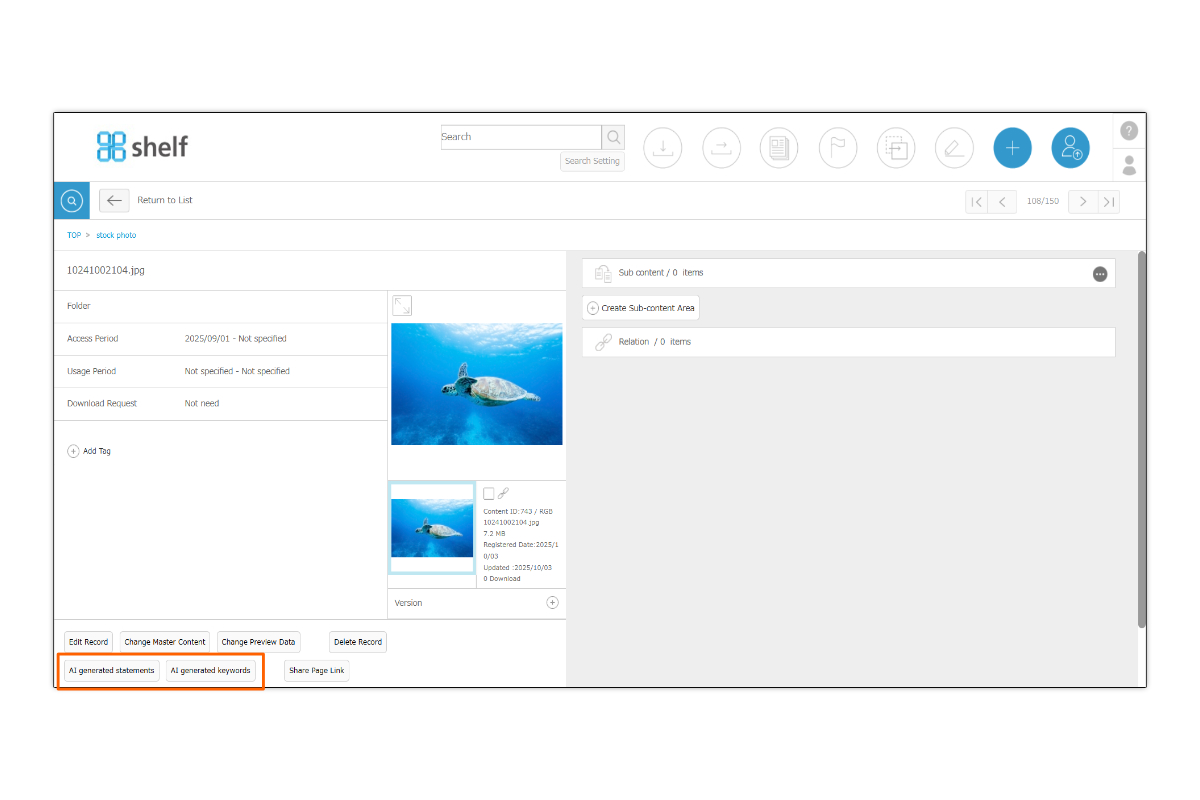
- Check the notification which appears, and click OK to continue.
* Please wait and do not click the button while the process is running.Upon completion, it will be registered in the metadata.
* If you are using the Automatic Translation Function, your content will be translated and reflected on our multilingual sites automatically.
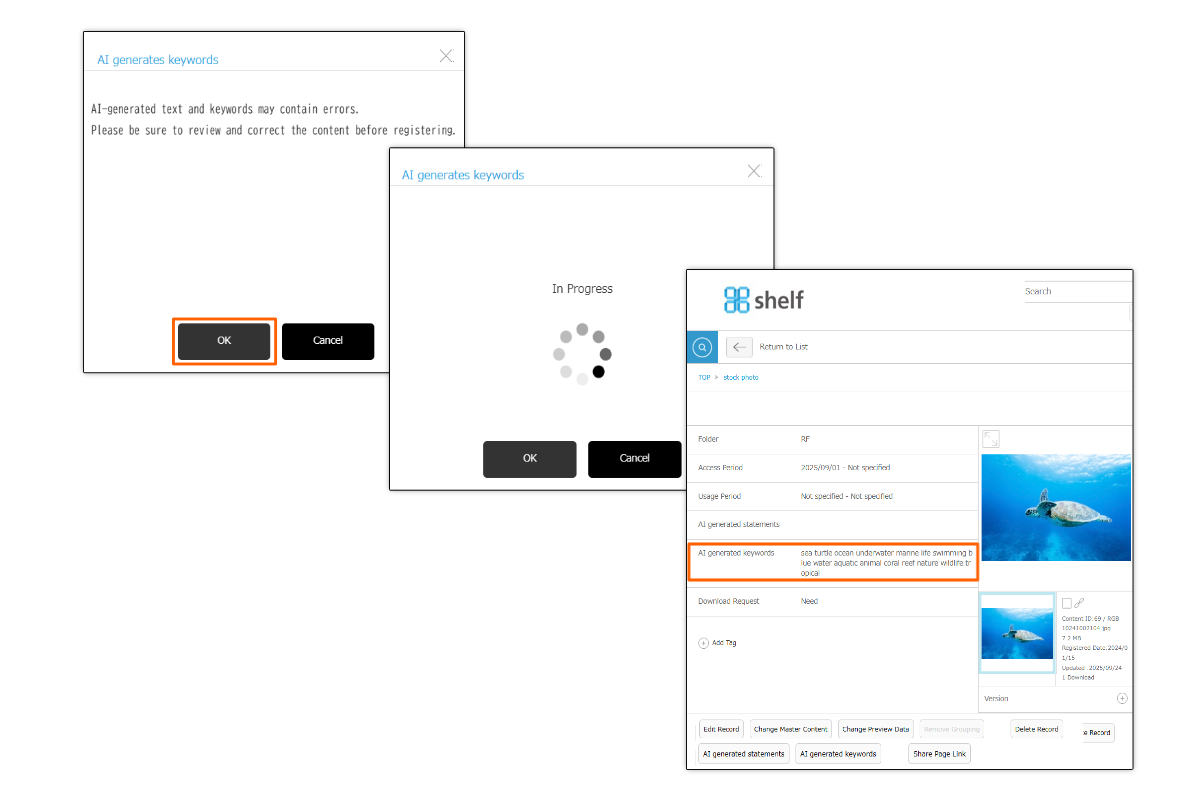
* Users without the relevant permissions cannot perform this action. For more information please contact your site administrator.
Editing information after AI generation
Users with meta editing privileges can modify the generated information.
For more information, please see Editing Meta Information Editing, Meta Information on multilingual sites.
* Users without the relevant permissions cannot perform this action. For more information please contact your site administrator.
* In order to use the AI generated feature, please contact your Shelf sales representative or Amana systems administrator.
* For information on setting user permissions, refer to Editing Roles.
